Home
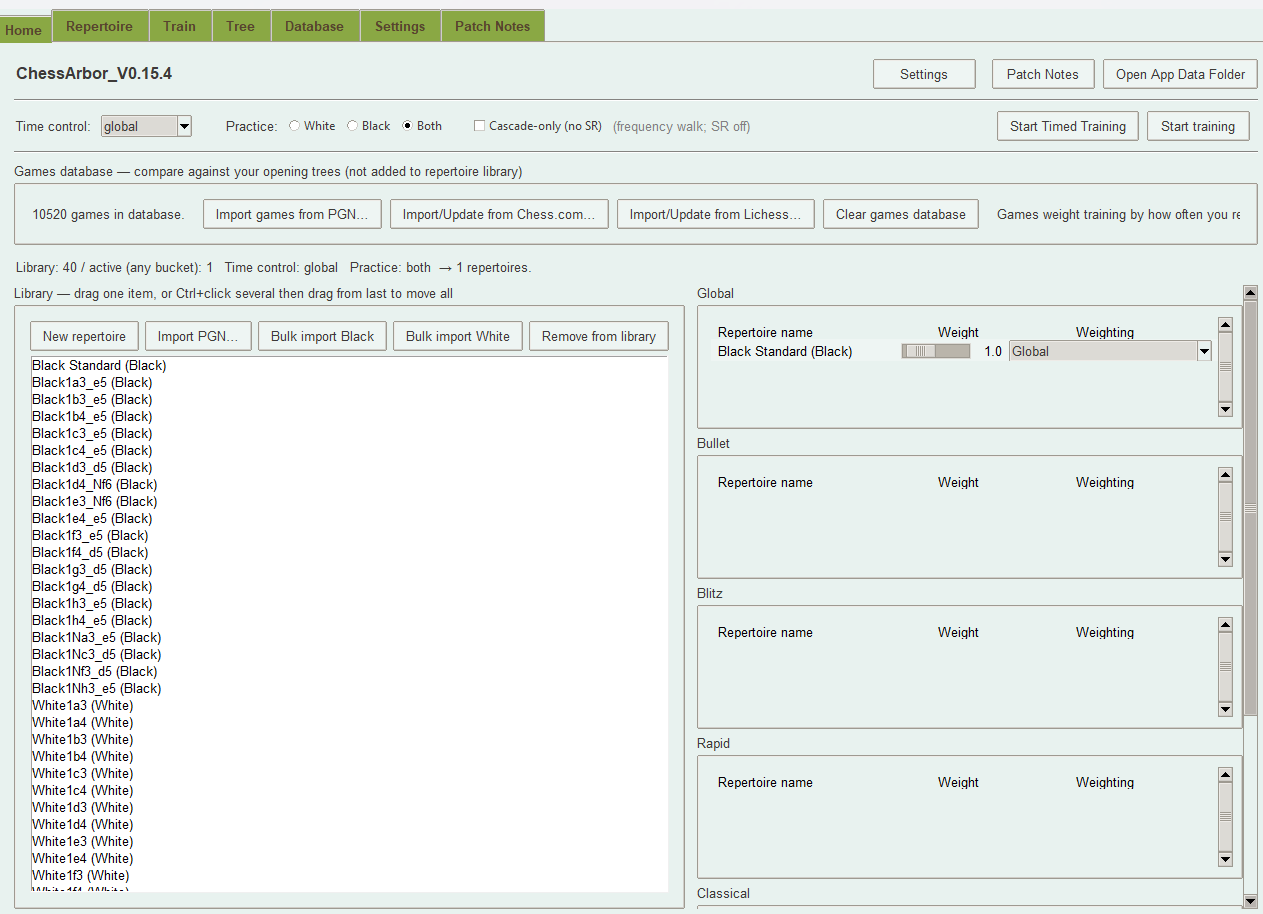
The Home tab is your launch pad for training and repertoire management.
Time Control and Practice - Choose time control: Global, Bullet, Blitz, Rapid, Classical, or Daily. This selects which repertoires and games are used for training. - Choose practice side: White, Black, or Both. - Optional cascade-only mode: frequency-based walk without spaced repetition. Games Database - Import games from PGN, Chess.com, or Lichess (by username). - Games are separate from your repertoire library. They help prioritize lines you reach most often in real play, surface missing moves in the Tree, and sync mastery when you play wrong moves in games. - Clear games database to remove all imported games. Library and Buckets - Library: all repertoires. Add via Import PGN, Bulk import Black/White, or New repertoire. - Buckets: Global, Bullet, Blitz, Rapid, Classical, Daily. Drag repertoires from Library into a bucket to make them active for that time control. - Right-click a repertoire: Train now, Export PGN, or Remove from bucket. Bucket Rows - Weight (0.5–5.0): higher = chosen more often when multiple repertoires are active. - Weighting: Global (effective game count), Time control based, Uniform, or Standard spaced repetition. Start Training - Start training — untimed practice. - Start Timed Training — per-move countdown; timeout counts as a wrong move.
Repertoire
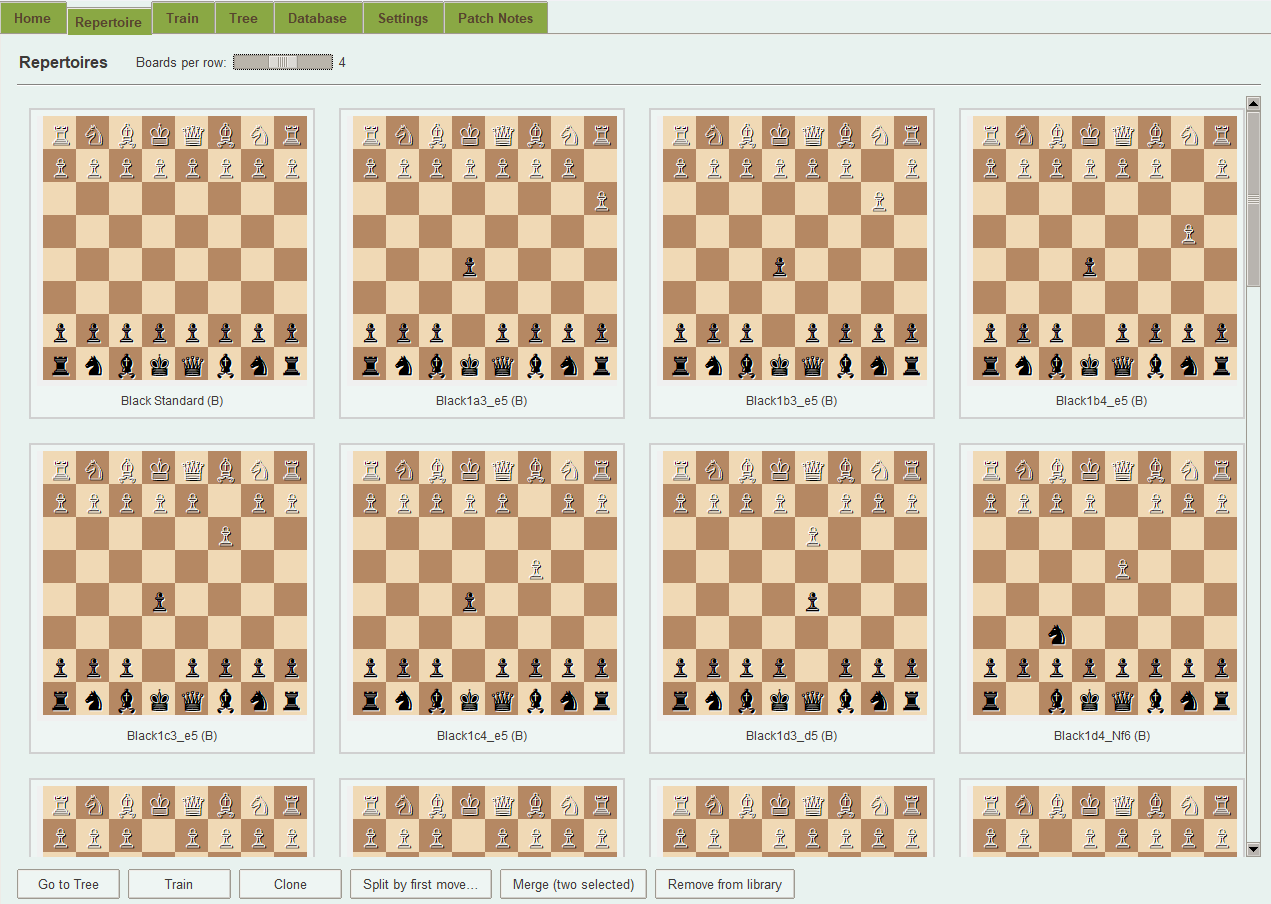
Manage your repertoire library with a visual board grid.
Board Grid - Each repertoire is shown as a chess board displaying the first split position — the last position before your opponent has multiple options (e.g., Ruy Lopez shows position after 3.Bb5). - Boards oriented with your side at the bottom. - Scale: adjust board size. - Scroll with mousewheel; click or Ctrl+click to select repertoires. Actions - Clone — create a copy of a repertoire (PGN + training state) with a new name. - Split by first move — extract lines that start with a chosen first move into a new repertoire. - Merge (two selected) — combine two repertoires (same side) into one. - Remove from library — delete repertoire(s) from the library.
Train
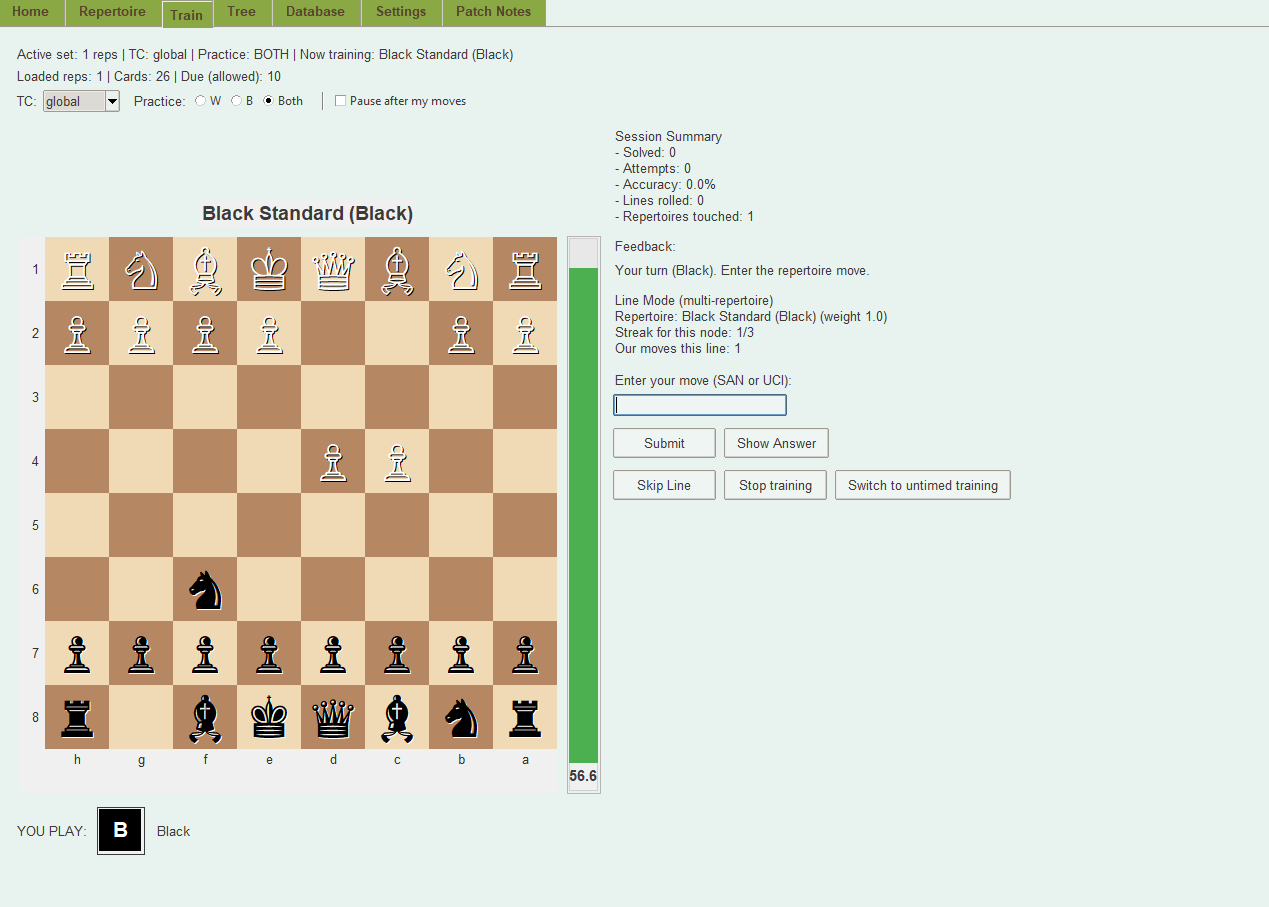
Practice your repertoire positions.
Layout
- Left: chess board showing the current position.
- Right: session info, feedback, move input, and actions.

Making Moves
- Click to move: click a piece (legal squares highlight), then click the destination.
- Drag and drop: drag a piece to a square.
- Text input: type the move in SAN (e.g. Nf3) or UCI (e.g. g1f3), then Submit.

Actions
- Submit — submit the move you typed.
- Show Answer — reveal the correct move(s) and advance (streak resets).
- Skip Line — skip the current line and start a new one.
- Stop training — return to Home.
- Switch to timed/untimed — toggle between timed and untimed mode.

Session Info
- Master Progress — mastered positions / total.
- Feedback — message after each move (correct, wrong, etc.).
- Gate — info about the current gate (unlocked ply).
- Line — current line being practiced.

Intro Playback
- When a new line starts, the app plays the moves from the start of the line up to your first training position. Playback speed is configurable in Settings.

Mastery and Streaks
- Each position requires a streak of correct moves (default 3) to be mastered.
- A wrong move resets the streak for that position.
- Playing a non-repertoire move in a real game (when imported) also resets the streak.
Tree
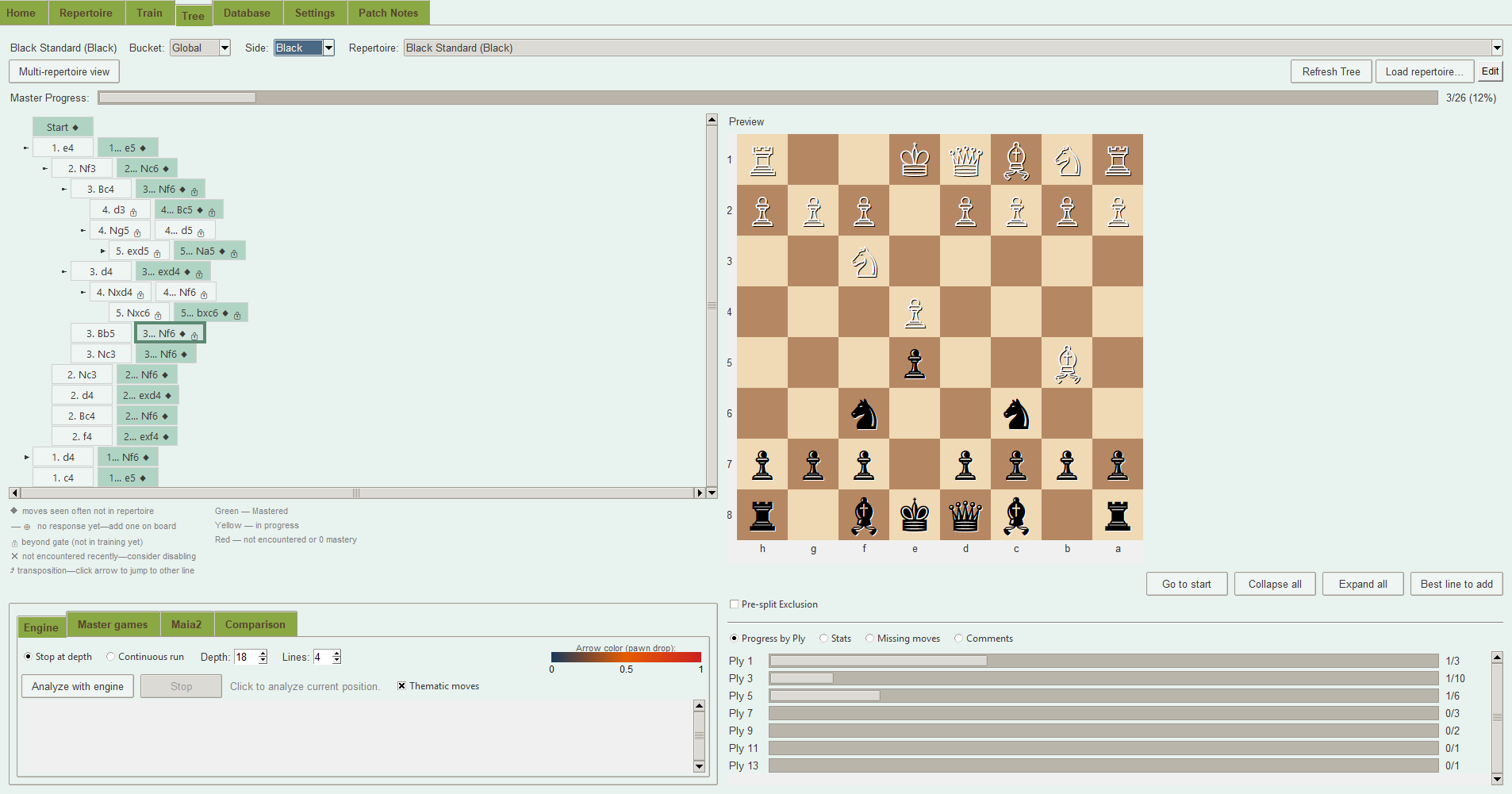
Explore and edit your repertoire as a move tree. Make informed decisions about which lines to add, keep, or prune using Stockfish engine analysis, your real game history (imported games), and Maia2 human move predictions.
Layout
- Left: tree of moves (expandable) plus a preview board.
- Right: Progress by Ply, Stats, Missing moves, or Comments.
Controls
- Bucket — time control (Global, Bullet, etc.).
- Single repertoire — uncheck for combined view (all reps); check to work with one repertoire.
- Side — White or Black.
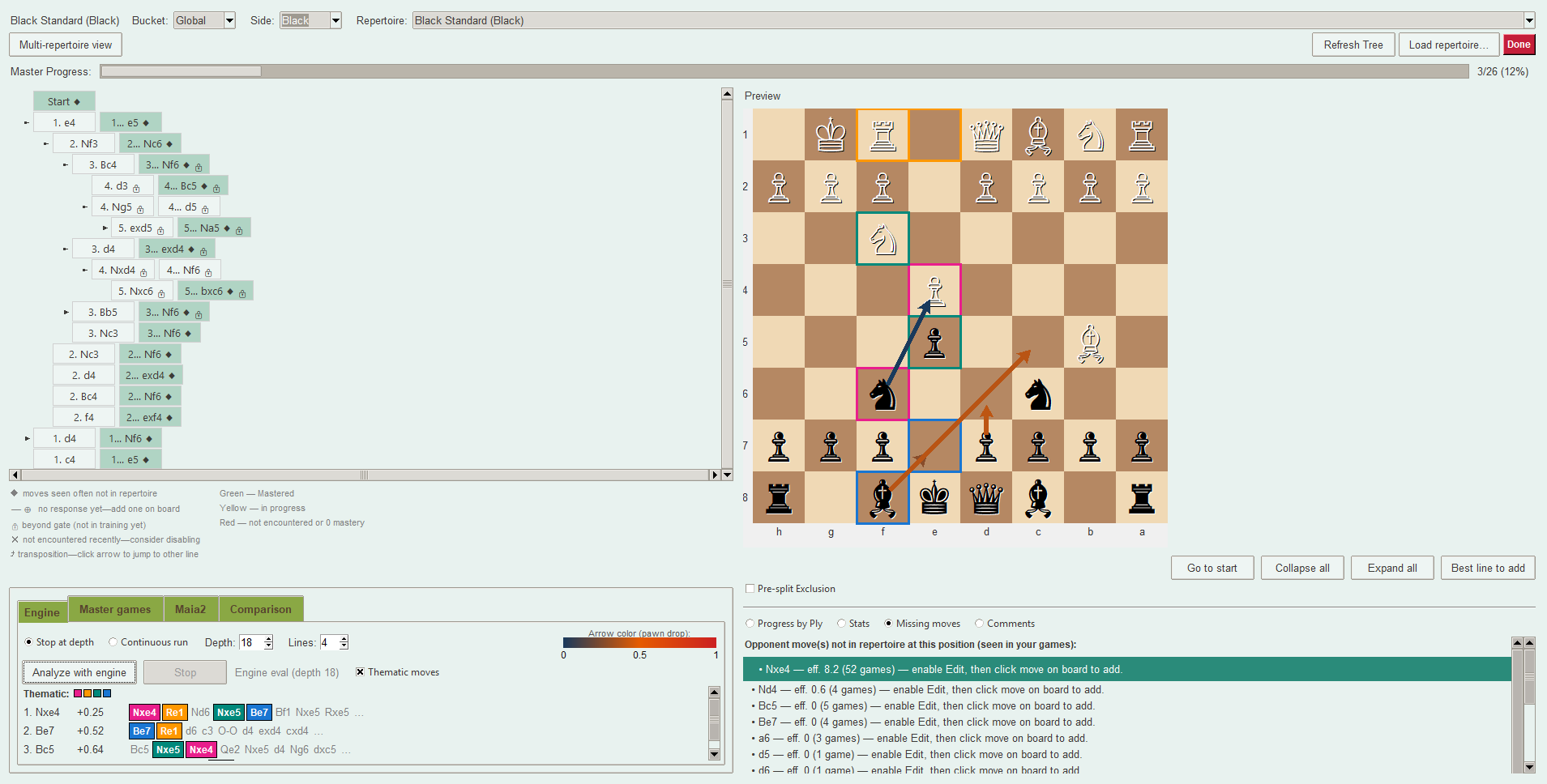
- Edit — toggle edit mode to add/remove moves on the board.
- Refresh Tree — rebuild the tree.
Tree Icons
- ◆ — moves seen often in your games but not in repertoire (add them).
- ⊕ — opponent move with no response yet (add one on the board).
- 🔒 — beyond the gate (not in training yet).
- ✕ — not encountered recently; consider disabling.
Right Panel Modes
- Progress by Ply — mastery progress along the current line.
- Stats — games reaching the position, win/draw/loss by time control, effective games.
- Missing moves — moves from your games not in repertoire; add them via Edit mode.
- Comments — notes per position; stored in the repertoire PGN when a single rep is selected.
Expand Panel (Engine, Master, Maia2, Comparison)
- Engine — Stockfish analysis; depth and number of lines configurable. See thematic moves.
- Master games — Lichess Opening Explorer (Master OTB or Lichess by time control).
- Maia2 — human move predictions (if installed). Sources: Lichess (real games), Maia Blitz, or Maia Rapid.
- Comparison — side-by-side Engine, Master, and Maia2 suggestions.
Edit Mode - Click Edit (button turns red Done). - Click a move on the board to add it to the repertoire. - Right-click a line for Remove (this line and all following), Disable line, Enable line, or gate options. - Click Done to exit edit mode. Right-Click Menu - Practice this line — start training from the selected line. - Export PGN — save repertoire with comments. - Enable/Disable line — toggle training for a line. - Add line — add a new continuation. - Remove — remove the line and all following moves. - Unlock/Lock gate — adjust the gate for this line.